For years the Remote Help conversation with customers ended the same way. Someone would ask why the built-in Intune remote support tool wasn’t just there, I’d explain that it’s part of the Intune Suite and sits behind a separate add-on, and the interest would quietly evaporate. Nobody wanted another per-user line item to support a helpdesk feature they half-expected to already own.
As of today that objection is mostly gone. From 1 July 2026, Microsoft folds a set of Intune Suite capabilities into Microsoft 365 E3 and E5 at no separate add-on cost, and Remote Help is one of them. It arrives alongside a list-price bump, with E3 going from $36 to $38 and E5 from $57 to $60 per user per month, so it isn’t free in the strict sense. But the add-on you used to buy on top is now part of the licence.
I said “mostly” on purpose. The entitlement and the price change land on 1 July, but the feature itself rolls out gradually across the summer. Microsoft posts a 30-day notice in the Message Center before a given tenant is provisioned, and the rollout is due to finish by 1 August 2026. So depending on where your tenant sits in that wave, you might have Remote Help today, or you might be a couple of weeks out. And provisioning is not the same as usage. The capability landing at tenant level doesn’t switch anything on for your users. You still have to enable it, scope who can use it, and get the app onto devices. That last part is what this post is about.
What E3 actually gets, and what stays on E5
The split matters, because “Intune Suite is in E3 now” is doing a lot of work in some of the coverage. E3, through Enterprise Mobility + Security E3, picks up Remote Help, Advanced Analytics, and the full Intune Plan 2 (Microsoft Tunnel for MAM, specialty device management for things like AR/VR and meeting-room kit, and firmware-over-the-air updates for supported Zebra devices). The heavier security pieces stay on E5: Endpoint Privilege Management, Cloud PKI, and Enterprise App Management. If you’re on E3 and you wanted those, it’s still an add-on or a move to E5.
One thing worth being clear about, because it trips up licensing conversations: eligibility is tied to the presence of an EMS E3 or Microsoft 365 E5 plan, not to tenant size or seat count, and not to whether you’ve moved to the full Microsoft 365 bundle. A customer on Office 365 E3 plus EMS E3 qualifies exactly the same way. If you’re already paying for the Remote Help add-on or the standalone Intune Suite, that charge doesn’t remove itself. You’ll want a licence review around your rollout window so you’re not paying twice for the same entitlement.
Before you plan anything, it’s worth confirming the entitlement has actually reached your tenant rather than assuming the calendar date did it. A quick Graph check tells you:
Connect-MgGraph -Scopes “Organization.Read.All”
Get-MgSubscribedSku | Select-Object SkuPartNumber, CapabilityStatus
Look for a SKU containing INTUNE_SUITE with a CapabilityStatus of Enabled. If it isn’t there yet, check your Message Center for the notice and give it time. A missing SKU is the most common reason the Remote Help options look greyed out in the admin center.
Turning it on and scoping who can help
Remote Help is disabled by default, and enabling it is a tenant-wide switch. In the Microsoft Intune admin center, go to Tenant administration > Remote Help, open the Settings tab, and choose Configure. Set Enable Remote Help to Enabled. While you’re there you’ll see two more options. Allow Remote Help to unenrolled devices is off by default and is what you’d turn on for BYOD or an exec’s personal machine. Disable chat lets you strip the in-session chat if you’d rather not have it. Save when you’re done.
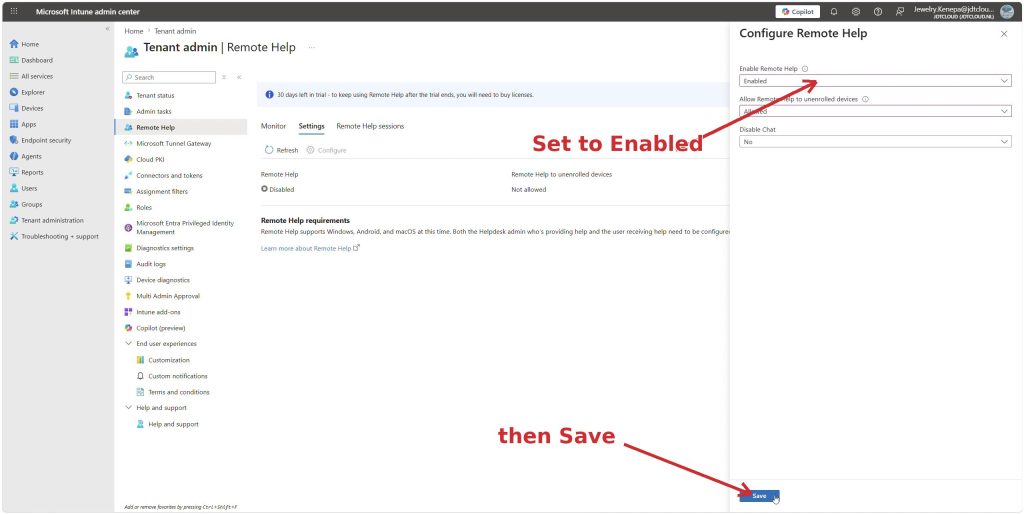
The Configure Remote Help panel: set Enable Remote Help to Enabled, then Save. Captured in a test tenant running the Remote Help trial.
Give it a moment before you test. New or trial licences can take anywhere from 30 minutes to 8 hours to go fully active, and during that window a session can still report that Remote Help isn’t enabled even though you’ve just enabled it. That one has sent people chasing a problem that wasn’t there.
Who can actually help, and what they’re allowed to do, runs entirely through Intune RBAC. The built-in Help Desk Operator role already carries the Remote Help permissions, so if that fits your model you can just use it. If you want tighter control, create a custom role under Tenant administration > Roles and grant the Remote help app permissions you want: View screen, Take full control, Elevation, and Unattended control, plus the Remote Tasks (Offer remote assistance) and Remote Assistance Connector (Read) permissions that the app needs to function. The permissions stack in a sensible way. Turning on Take full control also grants View screen, and turning on Elevation grants both. So think in terms of the highest level you want a given group to have.
Assigning the role is where the scope actually bites. Open the role, go to Assignments, and choose Assign. The Admin Groups page is your helper security group, the people giving support. The Scope (Groups) page is who they’re allowed to help. If a sharer or their device falls outside a helper’s scope, that helper simply can’t connect. One gotcha for unenrolled devices: the All Devices scope doesn’t include them, so if you’re supporting unenrolled machines you need to assign a user scope group instead.
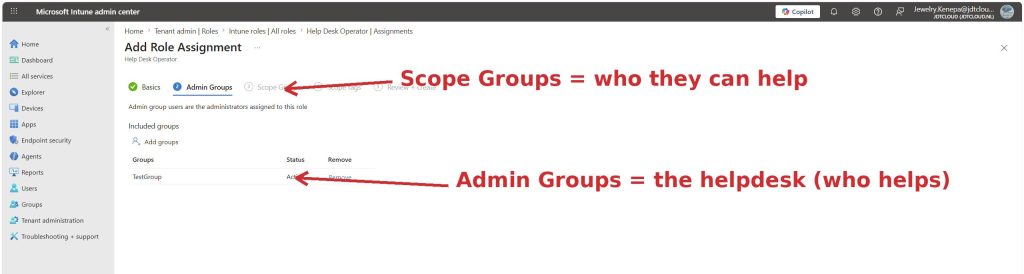
Assigning the Help Desk Operator role. Admin Groups are your helpers; Scope Groups, the next step, are who they’re allowed to help.
Deploying the Remote Help app
Both ends of a session need the Remote Help app, helpers and sharers alike, so plan to get it onto every device that will give or receive support. Start by downloading remotehelpinstaller.exe from aka.ms/downloadremotehelp. From there you’ve got two routes onto your Windows fleet.
The route that works on any Intune plan is to ship it as a Win32 app. Repackage remotehelpinstaller.exe into a .intunewin file with the Microsoft Win32 Content Prep Tool, then add it under Apps > All Apps > Create > Windows app (Win32). Set the install command to remotehelpinstaller.exe /quiet acceptTerms=1 and the uninstall command to remotehelpinstaller.exe /uninstall /quiet acceptTerms=1. If you’d rather manage versions yourself, append enableAutoUpdates=0 to the install command. Add a version-based detection rule so Intune reinstalls on any device running an older build, and assign it as Required to your helper and sharer groups. The installer pulls in the Microsoft Edge WebView2 runtime if it isn’t already there.
If you’re on the Intune Suite, so E5, or E3 once your entitlement lands, the easier route is the Enterprise App Catalog. Remote Help is prepackaged there with Microsoft’s own install and detection settings, so you skip the packaging entirely, and you can switch on auto-update to have new versions roll out without you lifting a finger. Add it under Apps > Windows > Add > Windows catalog app (Win32) and assign it Required to the same groups. Winget covers one-off manual installs, macOS updates come through Microsoft AutoUpdate, and Android comes through the Play Store.
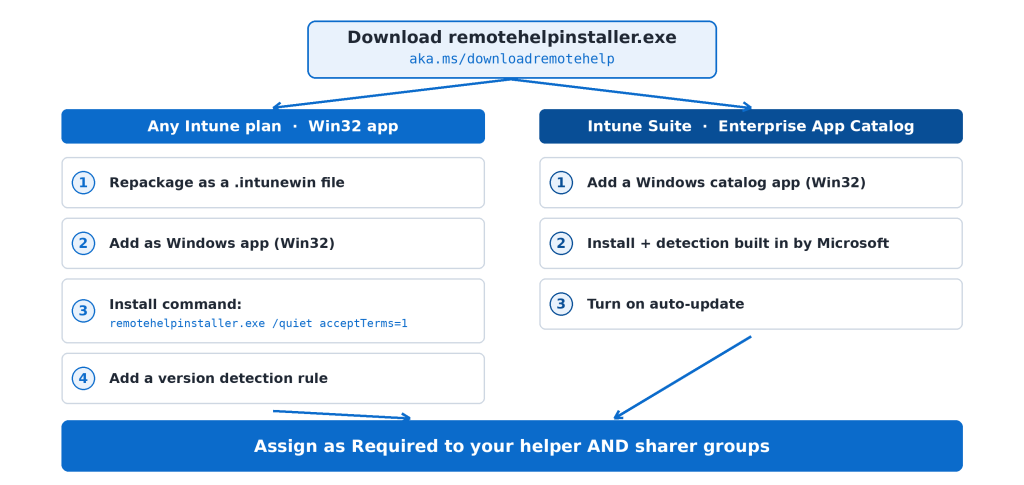
Two routes onto Windows: repackage as a Win32 app on any plan, or pull Remote Help from the Enterprise App Catalog on the Intune Suite. Both land on helper and sharer devices.
macOS needs one extra step that’s easy to forget. The app can’t share the screen or take control until you grant it the right privacy permissions, so you need a PPPC profile. Create it under Devices > Manage devices > Configuration > Create > macOS > Settings catalog, and grant Remote Help the Accessibility and Screen Capture services. Skip this and your Mac sessions will connect but do nothing useful, which is a confusing way to find out. Microsoft’s deploy doc has the exact service values if you want to copy them across.
On the network side, both the helper and the sharer need to reach the Remote Help endpoints over port 443. Traffic goes to remotehelp.microsoft.com over RDP encrypted with TLS 1.2, and the endpoint set includes the Trouter host at *.trouter.communications.svc.cloud.microsoft. If you run tight egress filtering, pull the current FQDN list from the Microsoft Learn network endpoints page rather than guessing. It’s also worth confirming your Remote Help clients are landing on the current version (5.2.1037.0 at the time of writing) as it rolls out through your normal Intune update channels.
Two more things to fold into your design rather than bolt on later. Conditional Access applies to Remote Help, so you can require MFA for helpers or gate access on a compliant device or a trusted location, which is a reasonable ask for anyone who can take full control of an endpoint. And unattended access, the ability to connect to a Windows device with nobody sitting in front of it, is a separate RBAC permission (Unattended control) reaching general availability from July 2026. It’s genuinely useful for after-hours work and shared kiosks, but it’s also the permission that turns Remote Help into something that looks a lot like the RMM tooling attackers love. Scope it to a small named group, keep Elevation off unless a role truly needs it, and actually read the audit logs it generates.
The order I’d actually do it in
Confirm the INTUNE_SUITE SKU is Enabled in your tenant before you promise anyone a date. Enable Remote Help under Tenant administration, and decide up front whether unenrolled devices are in scope. Sort the RBAC next, because a helper with no scope is a helper who can’t do anything: pick Help Desk Operator or a custom role, and assign it with a helper admin group and a sensible scope group. Then deploy the app to both helpers and sharers, remembering the macOS privacy profile if you support Macs. Confirm your network endpoints are open, run a real session between two test accounts in the same tenant, and check it lands in Tenant administration > Remote Help > Monitor with the session logged. Only then hand it to the helpdesk with a short bit of guidance, including the one limitation that surprises people: you can’t help a user in a different tenant, so cross-tenant and outsourced-helpdesk setups need their own plan.
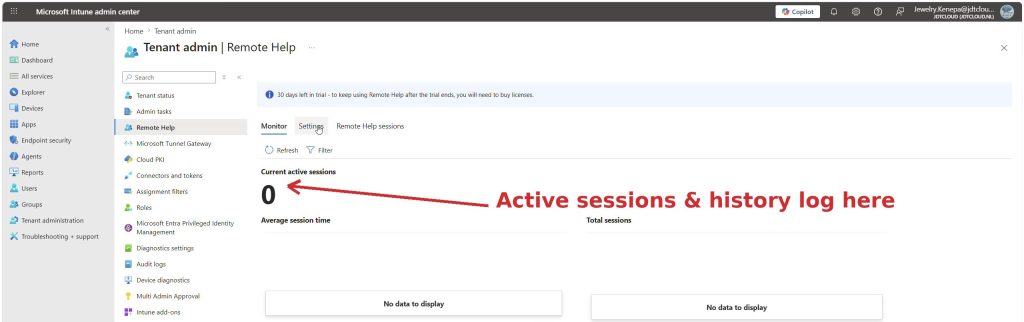
The Monitor tab, where active sessions and history are logged. Empty here because no session has run yet.
What a Remote Help session actually looks like
With it enabled, scoped and deployed, running a session is quick, and deliberately hard to spoof. Here’s the flow from end to end.
The helper opens the Remote Help app, signs in, and under Give help chooses Get a security code. That produces an eight-digit code valid for ten minutes, which the helper passes to the user out of band, over the phone or a Teams message, never through the session itself.
The user opens their own Remote Help app, or aka.ms/rh in a browser if they’re on an unenrolled or unsupported device, signs in with their work account, enters the code and submits. Both sides then see a trust screen showing the other person’s name, job title, company, photo and verified domain. That mutual identity check is the whole reason for the Entra sign-in, and it’s why Remote Help stays inside your own tenant: a helper cannot connect to a user in another organisation.
The helper picks View screen or Take full control, and the user gets a prompt with the helper’s details and the requested level to Allow or Decline. If the user’s device is out of compliance, the helper sees a warning first. Not a block, just a heads-up before they start handling something sensitive.
Inside the session the helper gets the tools you’d expect and a few you might not: a laser pointer and pen to annotate the screen, a persistent chat and instruction channel, and Task Manager access. If the helper holds the Elevation permission, a UAC prompt on the user’s device runs on the secure desktop, so the shared view pauses and greys out for a moment before the helper can interact with the elevated window through an admin session. The Enable secure credential prompting policy blocks that elevation entirely if you’d rather it never happen. Either side ends things with Leave, and the whole session lands in Tenant administration > Remote Help > Monitor and in the audit logs: who helped whom, on which device, for how long.
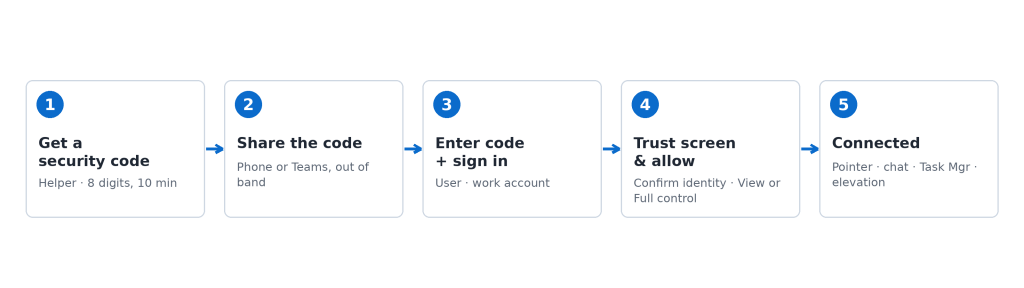
A session end to end: the helper generates a code, the user enters it, both confirm identity on the trust screen, the user allows view or full control, and the toolbar opens.
The bigger picture
The real change here isn’t technical, it’s that the reason most people gave for not deploying Remote Help just disappeared. For a lot of tenants it stops being a thing you evaluate and build a business case for, and becomes a thing you might as well turn on properly. That’s a good outcome. It also means the care that used to be forced on you by the licence now has to come from you instead. When a capability sat behind a paid add-on, only the teams that really wanted it went through the RBAC and Conditional Access design. Now that it’s in the box, the scoping discipline is the part you have to supply, especially around full control and unattended access.
If Remote Help lands in your tenant this summer, the question isn’t whether to use it, it’s whether you scope it like a tool that can take over any endpoint in the building. Because that’s what it is.
How are you handling the helper RBAC? I’m curious whether people are leaning on the built-in Help Desk Operator role as-is, or building custom roles to keep elevation and unattended control on a much shorter leash.
Reference: Microsoft’s announcement of the E3/E5 changes is on the Intune blog, and the configuration steps come from the Microsoft Learn Deploy Remote Help and Plan for Remote Help and Start a session docs.