Every lab tenant I keep alive for more than a couple of months turns into the same thing: a graveyard. Leftover compliance policies from a proof of concept I ran back in spring. A few half-finished Settings Catalog profiles. A security baseline I spun up to test one setting and never removed. A pile of Autopilot profiles with names like “test2” and “test2-final.” None of it does any harm sitting there. It just makes the tenant useless as a clean slate the next time I want to demo something properly.
Clearing it by hand is death by a thousand clicks. Open the blade, filter, select, delete, confirm. Move to the next blade. Do that sixty times. So I wrote a script that does the whole thing in one pass.
It’s PowerShell on top of Microsoft Graph. It walks 25 categories of Intune configuration, finds everything in each one, shows you exactly what it found, makes you type YES, and only then deletes the lot. There’s a -DryRun switch so you can see the damage before you commit to any of it.
Two things up front, because they matter. This is a lab and demo tenant tool: POC teardown, handing a tenant back clean, resetting a training environment. It is not something you point at production, and a good chunk of this post is about making sure you never do that by accident.
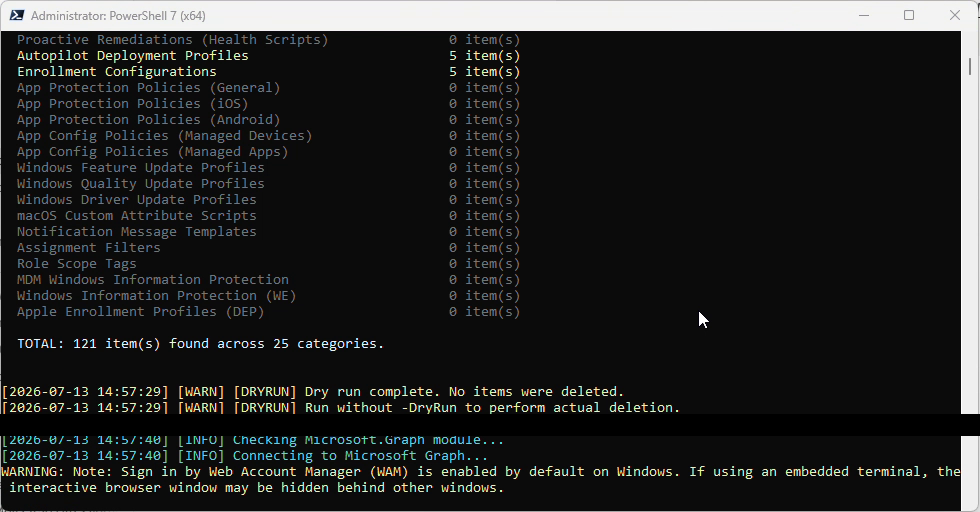
The -DryRun discovery summary: a per-category count and a total, before anything is touched.
What it actually clears
The script isn’t clever about what it removes. It’s thorough. It runs through 25 endpoints on the Graph beta API and empties each one: device configuration profiles and Settings Catalog policies, compliance policies, ADMX and Group Policy configurations, security baselines and intents, PowerShell platform scripts and macOS shell scripts, proactive remediations, Autopilot deployment profiles and enrollment configurations, every flavour of app protection and app configuration policy across iOS, Android and the general ones, feature, quality and driver update profiles, macOS custom attribute scripts, notification message templates, assignment filters, role scope tags, Windows Information Protection in both its MDM and WE variants, and the Apple DEP onboarding settings.
It’s deliberately careful in two small places. It skips the built-in default role scope tag, the one with id 0 that you can’t delete anyway, and it leaves Microsoft’s global proactive remediation scripts alone, only removing the ones you actually created.
What it doesn’t touch matters just as much, because “Intune” and “policy” get used loosely, and it’s easy to assume more is in scope than it really is. It doesn’t delete your enrolled devices, it doesn’t remove the apps you’ve uploaded, and it doesn’t go anywhere near Conditional Access. It clears compliance policies, yes, but the CA policies that consume them live in Entra, not Intune, so a reset like this leaves your Conditional Access completely intact. If your test rig leans on a CA policy, you’ll still have it afterwards. If you wanted that gone too, that’s a separate job on a different surface.
The guardrails that are already in there
The deleting is the easy part. Any of us could write a foreach loop that fires DELETE at a Graph endpoint. The part worth spending time on is everything that stops it going wrong.
DryRun first, always. Running the script with -DryRun does the full discovery, prints the summary, and exits without deleting a thing:
.\Remove-AllIntunePolicies.ps1 -DryRun
You get a per-category count and a total, so you can sanity check that, say, 121 items across 25 categories matches what you’d expect a tenant to be holding. If that number is bigger than it should be, stop and work out why before you go further.
Then there’s the discovery output itself. Before anything is deleted, the script lists every object by name, so you’re not trusting a bare count, you’re watching the actual display names scroll past. That’s genuinely useful and also exactly why you should always sanitise a tenant before recording or screenshotting a session: I’ve blacked out client references below rather than shipping them into a blog post.
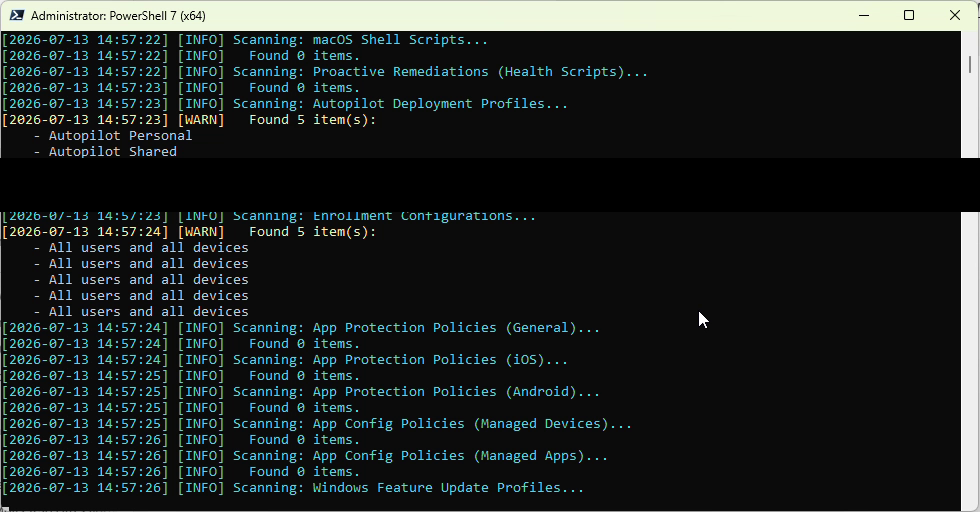
Discovery listing real object names before deletion. Entries tied to a client identity are blacked out; the rest is genuine script output.
The confirmation comes after that, and it’s not a Y/N you can fat-finger. It’s the full word YES, in capitals, or the script cancels and disconnects.
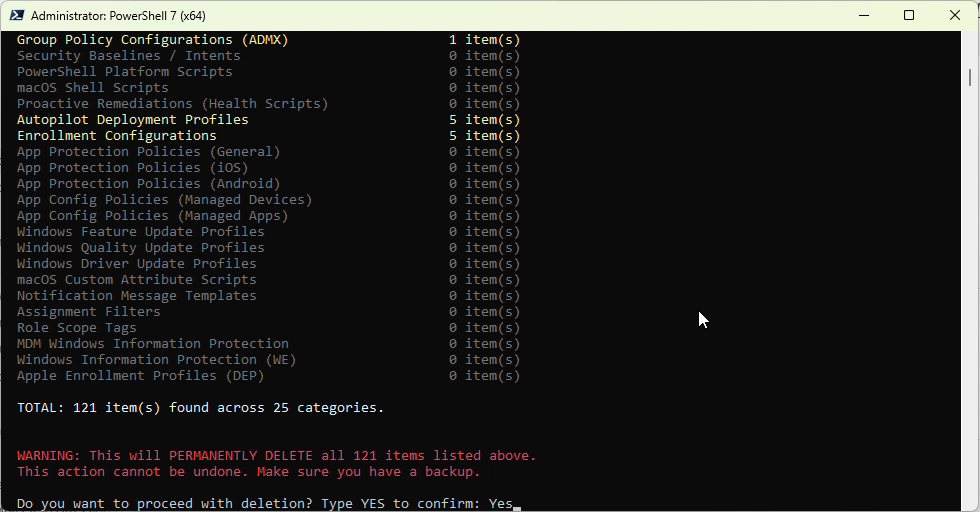
The confirmation gate: total item count, an explicit warning, and a typed YES, not a keypress.
Everything it does goes to a timestamped log file next to the script, one line per object, success or failure, with the id. Error handling is set to continue rather than halt, so a single object that refuses to delete doesn’t leave you half done with no record of where it stopped. And it pages through Graph properly with @odata.nextLink, so a category with more results than one page returns doesn’t quietly leave a chunk behind.
The guardrail I’d add before trusting it near a real login
Here’s the gap I’d close first. The confirmation asks you to type YES, but it never tells you which tenant you’re about to empty.
If you’re a consultant, your Graph session history has three tenants in it on a slow day. Connect-MgGraph will happily reconnect to whichever one you were last in, and the script will discover and delete against it without ever putting the tenant name in front of you. The YES protects you from an accidental keypress. It does nothing to protect you from the wrong tenant.
So before I run this on any machine that has ever touched a customer tenant, I’d add a tenant check to the confirmation, right after the connect:
$ctx = Get-MgContext

Write-Host ("Connected to: " + $ctx.TenantId + " as " + $ctx.Account) -ForegroundColor Yellow

$tenantConfirm = Read-Host "Type the tenant domain to confirm you are in the RIGHT tenant"

if ($tenantConfirm -ne "contoso-lab.onmicrosoft.com") {

    Write-Host "Tenant mismatch. Aborting." -ForegroundColor Red

    Disconnect-MgGraph | Out-Null

    exit

}
Now the script won’t proceed unless you’ve looked at the tenant it’s connected to and typed its name back. It turns a “did I read the output” check into a “do I know where I am” check, and the second one is what actually saves you.
How I’d actually run it
The sequence I’d follow, with the portal open in another tab:
- Sign in with an account that only has rights in the lab tenant, not your everyday admin login. The script needs the four DeviceManagement*.ReadWrite.All scopes and will prompt for consent the first time.
- Run it with -DryRun and read the summary and the log. Compare the counts against what you know is in there.
- If, and only if, the tenant and the counts are what you expect, run it again without -DryRun, type YES, and let it work.
- Keep the log. It’s your record of exactly what left the tenant.
If you want to eyeball the before and after in the UI, the objects it clears sit across three areas of the Intune admin center at intune.microsoft.com. Most live under Devices (configuration, compliance, scripts and remediations, enrollment), the baselines sit under Endpoint security, and the protection and configuration policies sit under Apps. A quick look at those blades before and after is a good gut check that the tool did what the log says it did.
The full script
Here’s the whole thing. This is the version without the tenant check, so if you’re running it anywhere near a real login, paste the block from earlier in right after the connect. You’ll need the Microsoft.Graph module, and the script installs it for you if it’s missing. Lab tenants only.
param(
    [switch]$DryRun
)
# ───────────────────────────── Setup ─────────────────────────────
$ErrorActionPreference = "Continue"
$logFile = Join-Path $PSScriptRoot ("IntuneBulkDelete_" + (Get-Date -Format "yyyyMMdd_HHmmss") + ".log")
function Write-Log {
    param([string]$Message, [string]$Level = "INFO")
    $timestamp = Get-Date -Format "yyyy-MM-dd HH:mm:ss"
    $entry = "[$timestamp] [$Level] $Message"
    Add-Content -Path $logFile -Value $entry
    if ($Level -eq "SUCCESS") { Write-Host $entry -ForegroundColor Green }
    elseif ($Level -eq "ERROR") { Write-Host $entry -ForegroundColor Red }
    elseif ($Level -eq "WARN") { Write-Host $entry -ForegroundColor Yellow }
    else { Write-Host $entry -ForegroundColor Cyan }
}
# ───────────────────────── Graph Connection ──────────────────────
Write-Log "Checking Microsoft.Graph module..."
if (-not (Get-Module -ListAvailable -Name Microsoft.Graph.Authentication)) {
    Write-Log "Microsoft.Graph module not found. Installing..." "WARN"
    Install-Module Microsoft.Graph -Scope CurrentUser -Force -AllowClobber
}
$scopes = @(
    "DeviceManagementConfiguration.ReadWrite.All",
    "DeviceManagementServiceConfig.ReadWrite.All",
    "DeviceManagementManagedDevices.ReadWrite.All",
    "DeviceManagementApps.ReadWrite.All"
)
Write-Log "Connecting to Microsoft Graph..."
Connect-MgGraph -Scopes $scopes -ErrorAction Stop
Write-Log "Connected to Microsoft Graph." "SUCCESS"
# ────────────────────── Category Definitions ─────────────────────
$categories = @(
    @{ Name = "Device Configuration Profiles"; Endpoint = "/deviceManagement/deviceConfigurations" }
    @{ Name = "Settings Catalog Policies"; Endpoint = "/deviceManagement/configurationPolicies" }
    @{ Name = "Compliance Policies"; Endpoint = "/deviceManagement/deviceCompliancePolicies" }
    @{ Name = "Group Policy Configurations (ADMX)"; Endpoint = "/deviceManagement/groupPolicyConfigurations" }
    @{ Name = "Security Baselines / Intents"; Endpoint = "/deviceManagement/intents" }
    @{ Name = "PowerShell Platform Scripts"; Endpoint = "/deviceManagement/deviceManagementScripts" }
    @{ Name = "macOS Shell Scripts"; Endpoint = "/deviceManagement/deviceShellScripts" }
    @{ Name = "Proactive Remediations (Health Scripts)"; Endpoint = "/deviceManagement/deviceHealthScripts" }
    @{ Name = "Autopilot Deployment Profiles"; Endpoint = "/deviceManagement/windowsAutopilotDeploymentProfiles" }
    @{ Name = "Enrollment Configurations"; Endpoint = "/deviceManagement/deviceEnrollmentConfigurations" }
    @{ Name = "App Protection Policies (General)"; Endpoint = "/deviceAppManagement/managedAppPolicies" }
    @{ Name = "App Protection Policies (iOS)"; Endpoint = "/deviceAppManagement/iosManagedAppProtections" }
    @{ Name = "App Protection Policies (Android)"; Endpoint = "/deviceAppManagement/androidManagedAppProtections" }
    @{ Name = "App Config Policies (Managed Devices)"; Endpoint = "/deviceAppManagement/mobileAppConfigurations" }
    @{ Name = "App Config Policies (Managed Apps)"; Endpoint = "/deviceAppManagement/targetedManagedAppConfigurations" }
    @{ Name = "Windows Feature Update Profiles"; Endpoint = "/deviceManagement/windowsFeatureUpdateProfiles" }
    @{ Name = "Windows Quality Update Profiles"; Endpoint = "/deviceManagement/windowsQualityUpdateProfiles" }
    @{ Name = "Windows Driver Update Profiles"; Endpoint = "/deviceManagement/windowsDriverUpdateProfiles" }
    @{ Name = "macOS Custom Attribute Scripts"; Endpoint = "/deviceManagement/deviceCustomAttributeShellScripts" }
    @{ Name = "Notification Message Templates"; Endpoint = "/deviceManagement/notificationMessageTemplates" }
    @{ Name = "Assignment Filters"; Endpoint = "/deviceManagement/assignmentFilters" }
    @{ Name = "Role Scope Tags"; Endpoint = "/deviceManagement/roleScopeTags" }
    @{ Name = "MDM Windows Information Protection"; Endpoint = "/deviceAppManagement/mdmWindowsInformationProtectionPolicies" }
    @{ Name = "Windows Information Protection (WE)"; Endpoint = "/deviceAppManagement/windowsInformationProtectionPolicies" }
    @{ Name = "Apple Enrollment Profiles (DEP)"; Endpoint = "/deviceManagement/depOnboardingSettings" }
)
# ─────────────────────── Helper: Get All Items ───────────────────
function Get-AllGraphItems {
    param([string]$Uri)
    $items = @()
    $requestUri = "https://graph.microsoft.com/beta" + $Uri
    do {
        try {
            $response = Invoke-MgGraphRequest -Method GET -Uri $requestUri -ErrorAction Stop
            if ($response.value) {
                $items += $response.value
            }
            $requestUri = $response.'@odata.nextLink'
        }
        catch {
            Write-Log (" Failed to GET " + $requestUri + " : " + $_.Exception.Message) "ERROR"
            $requestUri = $null
        }
    } while ($requestUri)
    return $items
}
# ────────────────────────── Discovery Phase ──────────────────────
Write-Host ""
Write-Host "================================================================" -ForegroundColor Magenta
Write-Host " INTUNE BULK POLICY REMOVAL - DISCOVERY " -ForegroundColor Magenta
Write-Host "================================================================" -ForegroundColor Magenta
Write-Host ""
$allResults = @()
foreach ($cat in $categories) {
    Write-Log ("Scanning: " + $cat.Name + "...")
    $items = Get-AllGraphItems -Uri $cat.Endpoint
    # Filter out default scope tag (id 0) for Role Scope Tags
    if ($cat.Endpoint -eq "/deviceManagement/roleScopeTags") {
        $items = $items | Where-Object { $_.id -ne "0" }
    }
    # Filter out built-in health scripts for Proactive Remediations
    if ($cat.Endpoint -eq "/deviceManagement/deviceHealthScripts") {
        $items = $items | Where-Object { $_.isGlobalScript -ne $true }
    }
    $count = 0
    if ($items) { $count = @($items).Count }
    if ($count -gt 0) {
        Write-Log (" Found " + $count + " item(s):") "WARN"
        foreach ($item in $items) {
            if ($item.displayName) { $displayName = $item.displayName }
            elseif ($item.name) { $displayName = $item.name }
            else { $displayName = $item.id }
            Write-Host (" - " + $displayName) -ForegroundColor Gray
        }
    } else {
        Write-Log " Found 0 items."
    }
    $allResults += [PSCustomObject]@{
        Category = $cat.Name
        Endpoint = $cat.Endpoint
        Items    = $items
        Count    = $count
    }
}
# ───────────────────────── Summary Table ─────────────────────────
Write-Host ""
Write-Host "================================================================" -ForegroundColor Magenta
Write-Host " SUMMARY " -ForegroundColor Magenta
Write-Host "================================================================" -ForegroundColor Magenta
Write-Host ""
$totalItems = 0
foreach ($r in $allResults) {
    if ($r.Count -gt 0) { $color = "Yellow" } else { $color = "DarkGray" }
    $line = " " + $r.Category.PadRight(50) + $r.Count.ToString().PadLeft(5) + " item(s)"
    Write-Host $line -ForegroundColor $color
    $totalItems += $r.Count
}
Write-Host ""
Write-Host (" TOTAL: " + $totalItems + " item(s) found across " + $allResults.Count + " categories.") -ForegroundColor White
Write-Host ""
if ($totalItems -eq 0) {
    Write-Log "Nothing to delete. Tenant is clean!" "SUCCESS"
    Disconnect-MgGraph | Out-Null
    exit 0
}
# ───────────────────────── DryRun Check ──────────────────────────
if ($DryRun) {
    Write-Host ""
    Write-Log "[DRYRUN] Dry run complete. No items were deleted." "WARN"
    Write-Log "[DRYRUN] Run without -DryRun to perform actual deletion." "WARN"
    Disconnect-MgGraph | Out-Null
    exit 0
}
# ───────────────────────── Confirmation ──────────────────────────
Write-Host ""
Write-Host (" WARNING: This will PERMANENTLY DELETE all " + $totalItems + " items listed above.") -ForegroundColor Red
Write-Host " This action cannot be undone. Make sure you have a backup." -ForegroundColor Red
Write-Host ""
$confirm = Read-Host " Do you want to proceed with deletion? Type YES to confirm"
if ($confirm -ne "YES") {
    Write-Log "Deletion cancelled by user." "WARN"
    Disconnect-MgGraph | Out-Null
    exit 0
}
# ────────────────────────── Deletion Phase ───────────────────────
Write-Host ""
Write-Host "================================================================" -ForegroundColor Red
Write-Host " DELETING INTUNE POLICIES... " -ForegroundColor Red
Write-Host "================================================================" -ForegroundColor Red
Write-Host ""
$totalDeleted = 0
$totalFailed = 0
foreach ($r in $allResults) {
    if ($r.Count -eq 0) { continue }
    Write-Log ("Deleting " + $r.Count + " item(s) from: " + $r.Category + "...")
    foreach ($item in $r.Items) {
        if ($item.displayName) { $displayName = $item.displayName }
        elseif ($item.name) { $displayName = $item.name }
        else { $displayName = $item.id }
        $deleteUri = "https://graph.microsoft.com/beta" + $r.Endpoint + "/" + $item.id
        try {
            Invoke-MgGraphRequest -Method DELETE -Uri $deleteUri -ErrorAction Stop
            Write-Log (" Deleted: " + $displayName + " (" + $item.id + ")") "SUCCESS"
            $totalDeleted++
        }
        catch {
            Write-Log (" Failed: " + $displayName + " (" + $item.id + ") - " + $_.Exception.Message) "ERROR"
            $totalFailed++
        }
    }
}
# ──────────────────────── Final Summary ──────────────────────────
Write-Host ""
Write-Host "================================================================" -ForegroundColor Magenta
Write-Host " FINAL RESULTS " -ForegroundColor Magenta
Write-Host "================================================================" -ForegroundColor Magenta
Write-Host ""
Write-Host (" Successfully deleted : " + $totalDeleted) -ForegroundColor Green
if ($totalFailed -gt 0) { $failColor = "Red" } else { $failColor = "Green" }
Write-Host (" Failed               : " + $totalFailed) -ForegroundColor $failColor
Write-Host (" Log file             : " + $logFile) -ForegroundColor Cyan
Write-Host ""
Write-Log ("Bulk deletion complete. Deleted: " + $totalDeleted + " | Failed: " + $totalFailed)
Disconnect-MgGraph | Out-Null
Write-Log "Disconnected from Microsoft Graph." "SUCCESS"
The bigger picture
This started as a way to save myself an afternoon of clicking, and it does exactly that. But the thing I keep coming back to is that the interesting engineering was never the deletion. It was the discovery, the preview, the typed confirmation, and the log. That’s the same discipline you’d want in front of any bulk Graph operation, destructive or not: show me what you’re about to do, make me confirm it, write down what happened.
If you build something like this for your own lab, the tenant check is the line I wouldn’t ship without.
Have you been burned by a script running against the wrong tenant, or is your own teardown routine still six blades and a lot of patience?