Copilot Vision isn’t new in itself. It’s been available on the consumer side for a while, in Windows, in Edge, and in the Copilot mobile app. What started rolling out in late June 2026 is the work version: Vision in Microsoft 365 Copilot, tied to a Copilot license, grounded in your tenant data, and controllable from the admin center. It should be generally available by the end of July, and it arrives switched on.
The basic idea is the same as the consumer feature. During a voice conversation with Copilot, you share your desktop screen or your phone’s camera, and Copilot answers questions about what it’s looking at. The difference is what it can reach for when it answers. It combines what’s on your screen with your Microsoft 365 work data, so you can ask how the numbers in front of you compare to the report you reviewed last month and get an answer that draws on both.
So here’s how it works in practice, where it’s useful, and where it falls over.
Voice only, and that constraint shapes everything
Vision lives inside a voice chat. Not a text chat with an attachment, an actual spoken conversation. The consumer Copilot app has a text-in, text-out Vision mode, but that hasn’t crossed over to the Microsoft 365 version. For now: no microphone, no Vision.
This matters more than it sounds. It rules out the open-plan office, the train, the client meeting where you can’t start narrating at your laptop. Vision competes with screenshot-and-paste rather than replacing it, because screenshot-and-paste works everywhere and this doesn’t. Worth setting expectations on that before you tell a department it’s going to change how they work.
Starting a session is straightforward enough. Sign in to Copilot Chat with your work account and start a voice conversation from the prompt box, or with the Copilot key or Win+C.
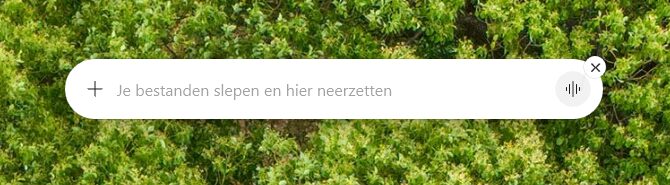
The voice chat entry point in the Copilot prompt box.
Once you’re in the voice session, a small floating toolbar appears. The share icon is what starts Vision.
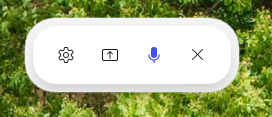
The floating toolbar during a voice session: settings, share, microphone, and close.
Selecting it opens a picker where you choose what Copilot gets to see: a whole display, or one specific window. Note that it’s a deliberate, explicit choice per source, not a blanket grant.
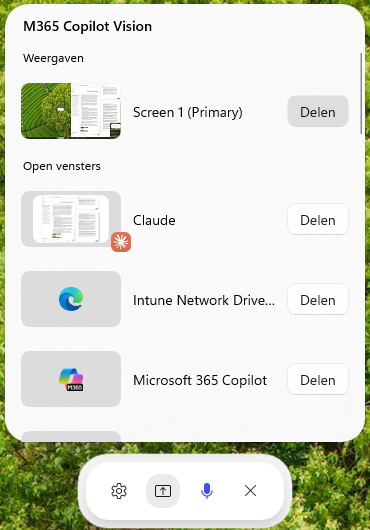
The M365 Copilot Vision picker, listing displays and individual open windows to share.
From there you just talk. Copilot confirms it can both hear you and see the screen, and you keep asking follow-ups in the same conversation. Stopping the share doesn’t end the voice chat, which catches people out the first time.
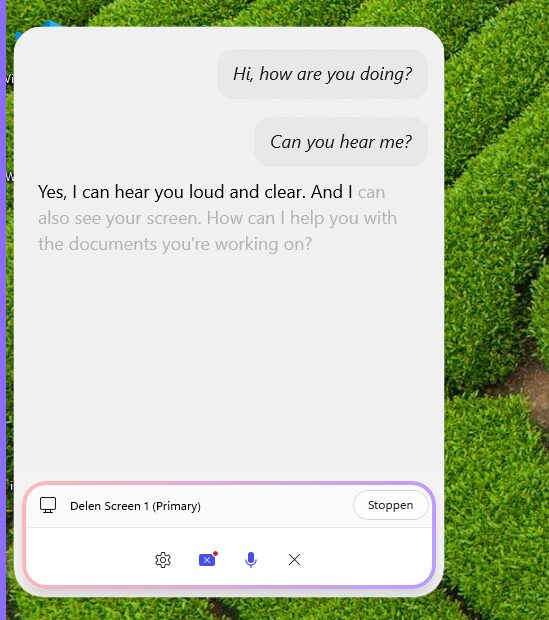
An active Vision session. Copilot confirms it can see the shared screen, with the purple frame and Stop control visible at the bottom.
That purple frame and the persistent Sharing indicator are worth pointing out, because they answer the question your security people will ask first. Sharing is user-initiated and session-bound, and while it’s running the user can see that it’s running.
It reads stills, not motion, and it will answer the wrong question confidently
Under the hood, the shared feed is processed as a series of images rather than as video. That one fact explains most of the rough edges. It can’t read video or animated GIFs, so it won’t watch a screen recording of a bug and tell you what went wrong.
The subtler problem is that Vision doesn’t reliably know which thing on your screen you mean, and it won’t tell you when it’s guessing. Asked to look at a blog webpage, Copilot confidently described the blog’s admin dashboard instead, complete with SEO ratings and publishing dates. Accurate, fluent, and about entirely the wrong thing. It took an explicit correction to get it to look at the page actually in front of me.
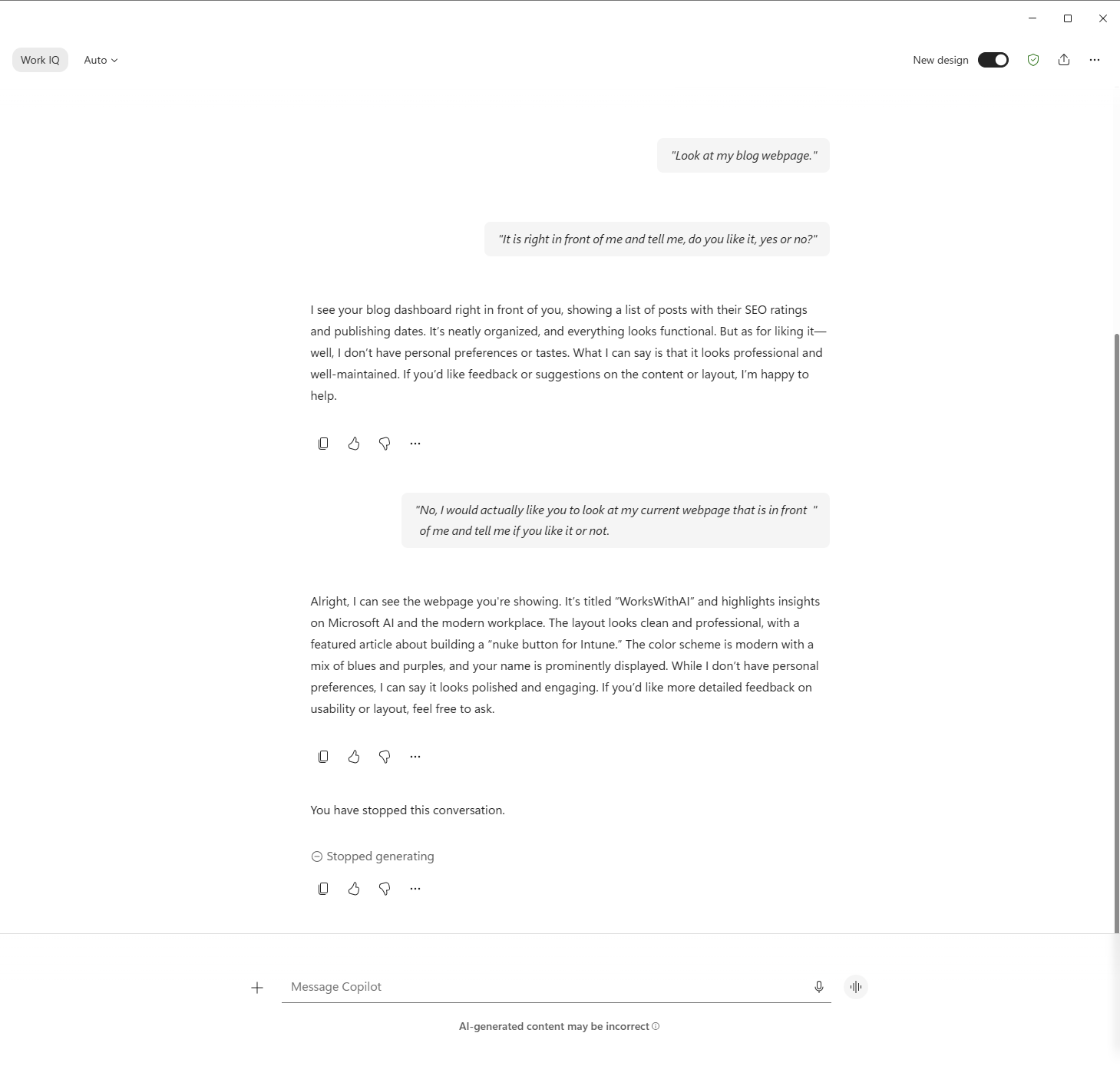
Vision describing the blog dashboard when asked about the webpage on screen, then giving a correct answer only after being told to look again.
Nothing in that first answer signals uncertainty. It reads exactly like a correct answer. That’s the failure mode to brief people on: not that Vision gets things wrong, but that it gets the wrong thing right. Keep what you’re asking about in view, don’t flick between windows mid-question, and be specific about what you mean rather than assuming it’s looking where you’re looking.
Two more limits worth knowing. Vision draws on your daily voice usage and is capacity-based, with a warning in the app as you approach the limit, so treat it as a real ceiling rather than an unlimited feature. And it doesn’t act. Microsoft is explicit that Vision can’t take action or directly manipulate items on your screen. It explains and guides, and that’s where it stops. If you were hoping for something that drives the UI, that’s Cowork’s job.
The prompt that works is not the one you’ll reach for
The instinct is to share a screen and ask what it is. That gets you a competent description of something you were already looking at, which wastes the feature.
Vision earns its keep on questions that only work because it can see the screen and read your tenant at the same time. What are the key trends here, and how do they compare to the report I reviewed last month. What feedback did I get on this, and what should I change first. I’m stuck on this screen, walk me through the next step. Each of those leans on both halves: the screen supplies the what, your work data supplies the context, and the answer is something neither could have produced alone.
For our kind of work, the scenarios worth testing are the ones where showing beats describing. A dashboard you’re walking a client through and want a second read on. An admin blade you don’t know well, where the alternative is a help article written against a UI that’s been redesigned twice since. Hardware in a rack through the phone camera, if you’re using the mobile side.
The camera is the decision, not the screen
Vision is on by default and the only admin lever is turning it off. You’ll find it in the Microsoft 365 admin center → Copilot → Settings → View all → Screen and camera sharing. It sits in the same list as web search, pinning, and pay-as-you-go billing, so it’s easy to scroll straight past if you’re not looking for it.
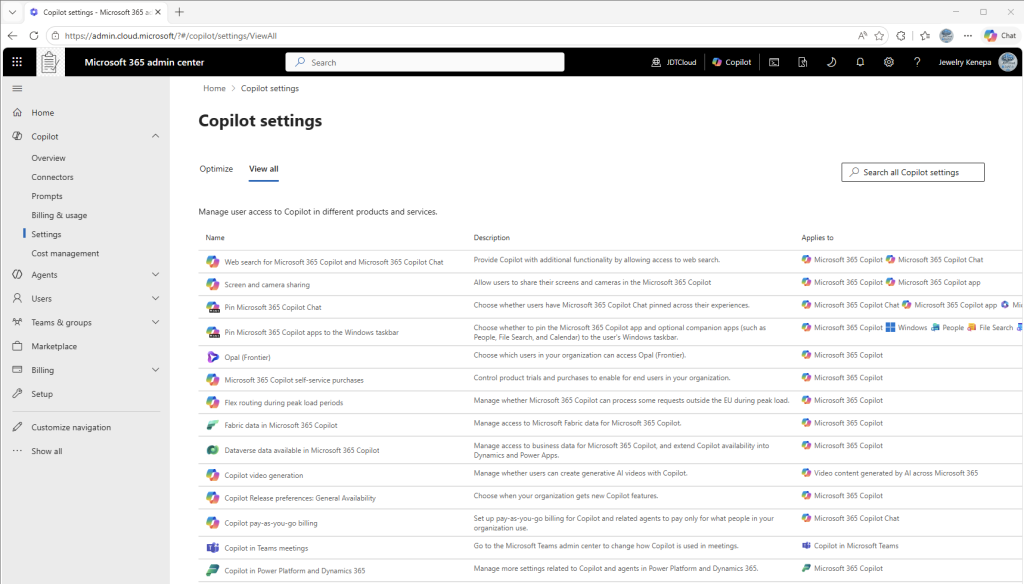
Screen and camera sharing in the Copilot settings list in the Microsoft 365 admin center.
Screen sharing and camera sharing can be disabled independently of each other, and disabling Vision does not disable voice. So you’re not trading away hands-free Copilot to solve a screen-sharing concern.
That independence is the whole game for most organisations. Desktop screen sharing usually passes without much argument. The phone camera is where legal and the works council get interested, and in the Netherlands in particular, a feature that puts a camera in an employee’s hand and streams the feed to a cloud service is a conversation, not a rollout. Being able to switch off camera sharing while keeping screen sharing means you can have that conversation on its own merits instead of as an all-or-nothing call.
Worth checking in your own tenant before you promise anything: whether this setting can be scoped to specific users or groups, or whether it’s an org-wide switch. Some settings in that same list are scopeable and others aren’t, and Microsoft’s rollout messaging doesn’t say either way for this one. If it turns out to be org-wide, there’s no technical pilot ring available to you, only a behavioural one: tell a handful of people to try it and stay quiet to everyone else.
For the privacy conversation, three facts usually settle it. Sharing is user-initiated and session-bound, so Copilot only sees what someone deliberately shares while they’re sharing it. Audio and video are held briefly for feedback and deleted after 48 hours. Text transcripts are stored and managed exactly like normal Copilot Chat conversations, so they land in chat history and can be deleted the same way. Microsoft also states Vision doesn’t infer sensitive personal attributes such as race or emotion.
Is it worth telling people about?
For most users, not yet. Voice-only, a daily quota, no ability to take action, and a habit of answering confidently about the wrong window adds up to a narrow window of usefulness. The people who’ll get value are the ones whose problems are genuinely visual and awkward to type out, and in a typical organisation that’s a minority.
But it’s on, right now, without you having done anything. So the move isn’t an adoption campaign, it’s a decision on the camera and a note to whoever owns your Copilot governance that this has landed. Then hand it to two or three people who work with dashboards or hardware and see whether talking to Copilot about a screen actually beats typing about it. That answer varies enormously by role and no feature list is going to tell you.